App Store Purchase Guide
How to Buy: Menu-by-Menu Flow
This page is not part of blog content. It is a practical playbook for app purchases and renewals. Use it before changing storefront context for Egypt.
Personalized context: Egypt (EG)
mediumRequires local gift card, address and IP.
🇪🇬Egypt
Popular apps priced in Egypt
Jump from this buying guide to live App Store price pages for this country.


Step 1: Pre-Flight Checklist
Check active subscriptions and renewal dates first.
Ensure no remaining store balance or unpaid orders.
Confirm a valid payment method for target storefront.
Review Family Sharing impact before changing region.
Step 2: Change Store Context (Menu Paths)
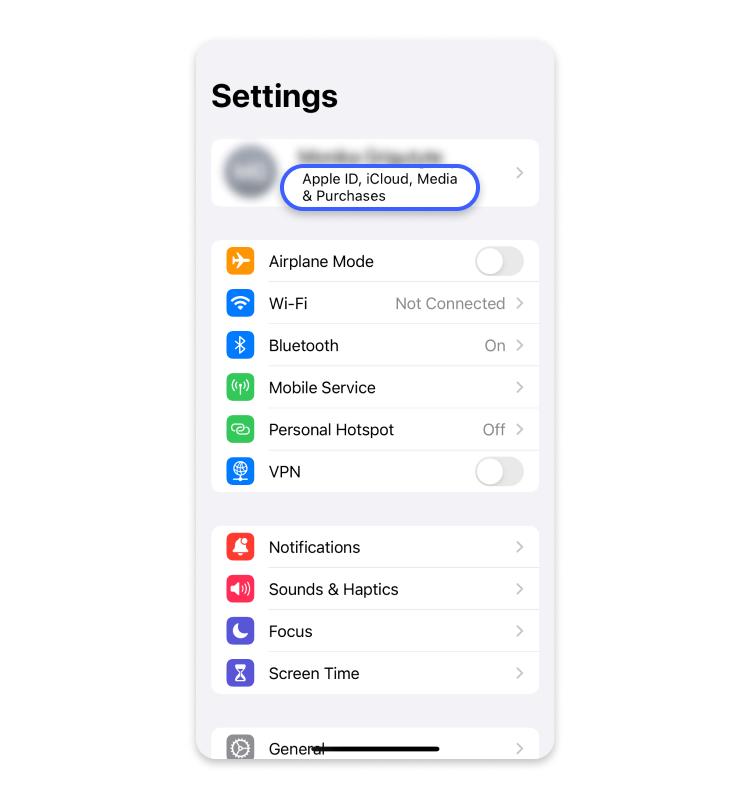
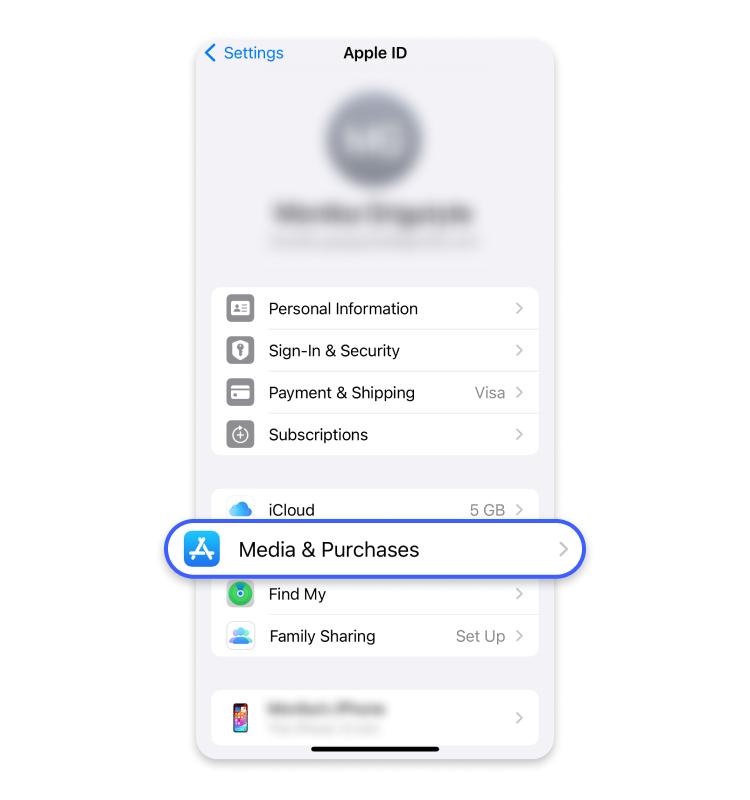
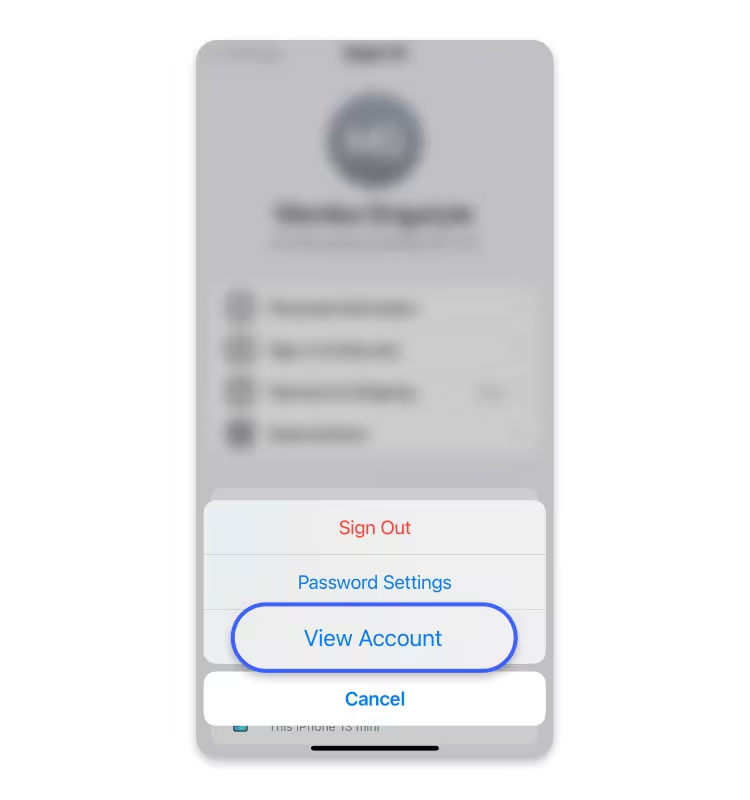
Settings[Your Name]Media & PurchasesView AccountCountry/RegionChange Country or Region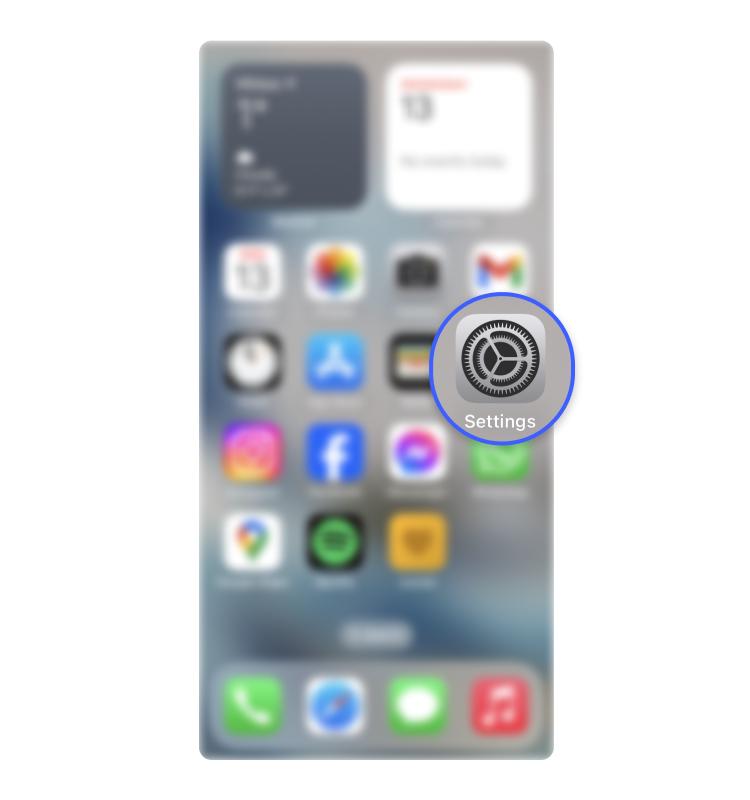
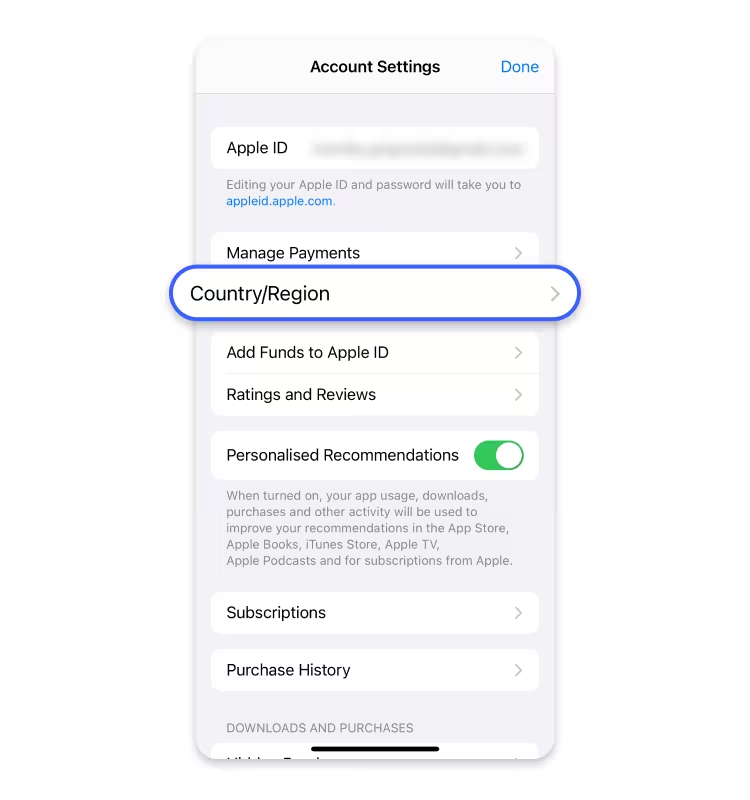
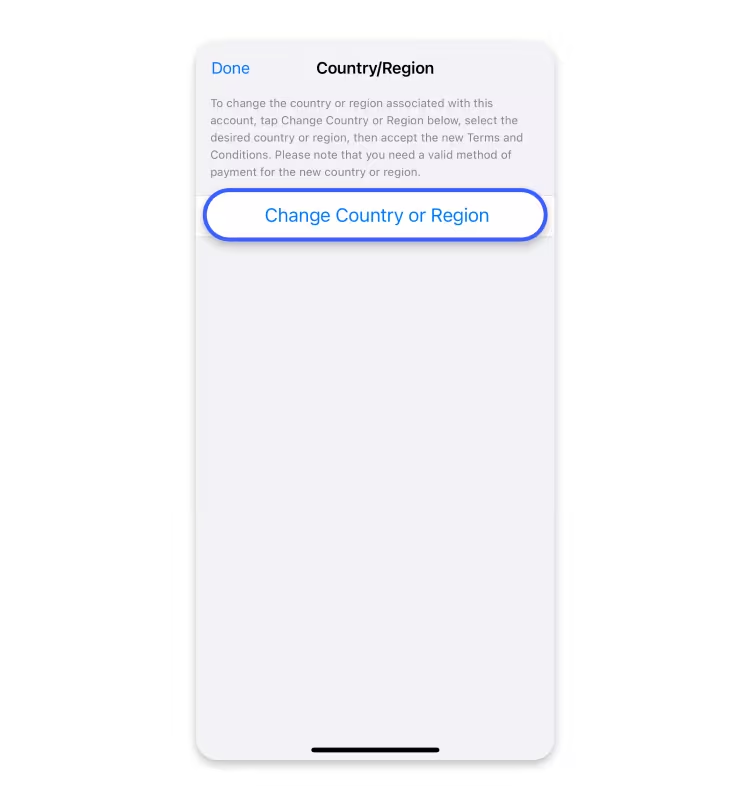
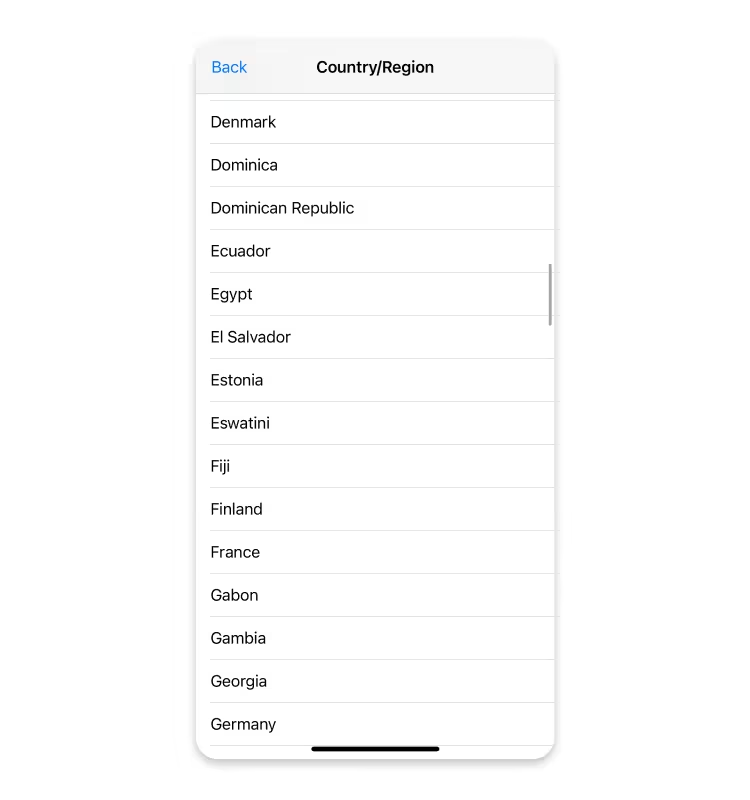
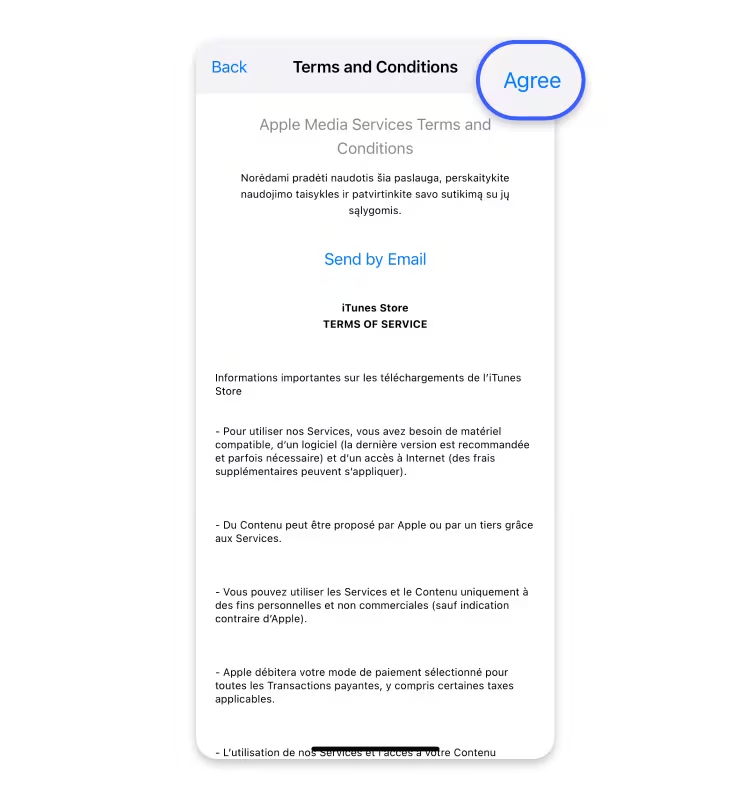
- 1. Open Settings.
- 2. Tap Apple Account (top row).
- 3. Tap Media & Purchases > View Account.
- 4. Open Country/Region and choose Change Country or Region.
- 5. Select the target country/region.
- 6. Review Terms & Conditions and tap Agree.
- 7. Add a payment method valid for that country.
- 8. Enter billing address details for that storefront.
- 9. Save and return to App Store to confirm region update.
Screens may vary slightly by iOS version.
Step 3: Payment Method Match
A payment method must match your active storefront context. If payment fails, re-check country-specific payment compatibility, billing profile, and card acceptance.
Common blocker: Region changed but payment method stayed from previous storefront.
Step 4: Renewal-Day Decision Flow
1. Renewal happened?
Yes: keep setup. No: continue to Step 2.
2. Billing issue?
Check payment method + storefront context.
3. Price still valid?
Verify current app price, then complete purchase.
Checklist: verify next billing date, storefront context, and payment method status before retrying.
Official References (Apple)